How to Use a Teleprompter on Zoom Without Anyone Knowing
You're on a Zoom call. You have your script ready. But the moment you glance at your notes, everyone notices. Your eyes move, your head tilts slightly, and suddenly you look unprepared — or worse, like you're reading from a script.
The good news: there's a way to read your notes on Zoom without anyone knowing. The key is using a teleprompter that stays invisible during screen sharing and positions your text exactly where your camera is.
Here's how to do it.

Why Most Teleprompters Don't Work for Zoom
Before we get into the solution, let's understand the problem.
Most teleprompter apps have two fatal flaws for video calls:
1. They're visible when you share your screen
You're presenting slides, doing a demo, or sharing a document. Your teleprompter window? Fully visible to everyone on the call. Awkward.
Some people try to share only a specific window instead of their entire screen. But that's clunky, limits what you can show, and one wrong click exposes your notes anyway.
2. They're positioned away from your camera
Traditional teleprompters float somewhere on your screen — usually in the center or to the side. When you read from them, your eyes move away from the camera.
On video, this is obvious. Your gaze shifts. You look distracted. People wonder what you're looking at.
The result: you either look like you're reading, or you have to memorize everything. Neither is ideal.

The Solution: A Teleprompter That Hides in Plain Sight
The trick is using a teleprompter that:
- Positions your text directly below your camera — so you maintain eye contact while reading
- Uses a macOS window level that screen capture ignores — so it's invisible during screen sharing
- Scrolls based on your voice — so you don't have to manually control it while presenting
This is exactly what Notchie does. It sits in the MacBook notch area (right where your camera is) and stays completely hidden when you share your screen.
But let me walk you through the complete setup.
Step-by-Step: Setting Up an Invisible Teleprompter for Zoom
Step 1: Get the Right Tool
Download Notchie or another teleprompter that supports screen share invisibility.
What to look for:
- ✅ Invisible during screen sharing
- ✅ Positions near the camera
- ✅ Voice-activated scrolling (optional but huge)
- ❌ Avoid browser-based tools — they'll show up in screen share
Step 2: Position the Teleprompter Near Your Camera
The goal is to minimize eye movement. On a MacBook, this means positioning your teleprompter in the notch area — literally right below the camera lens.
With Notchie, this is automatic. It's designed to sit in that dead space you never use anyway.
If you're using another tool, drag the window as close to your webcam as possible. The closer it is, the more natural your eye contact will look.
Step 3: Adjust the Size and Opacity
You don't want a giant block of text distracting you. Configure your teleprompter to show just enough text — usually 2-4 lines.
Settings to adjust:
- Width: Match your notch area or keep it narrow
- Height: 2-4 lines of visible text
- Font size: Large enough to read without squinting
- Opacity: Semi-transparent so you can see your Zoom window behind it
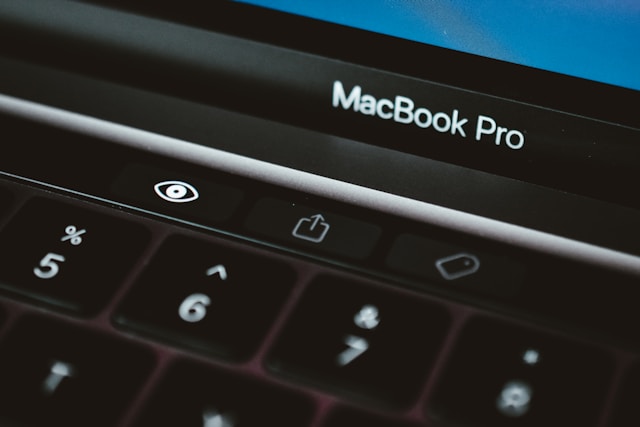
Step 4: Set Up Voice-Activated Scrolling
This is the game-changer. Instead of manually controlling the scroll speed (and looking robotic), let the teleprompter follow your voice.
With voice sync:
- Speak → text scrolls
- Pause → text waits
- Speed up → it keeps pace
No more racing to keep up with fixed-speed scrolling. No more awkward pauses while you wait for the text to catch up.
In Notchie, enable "Voice Sync" in settings. Adjust the microphone sensitivity so it responds to your voice, not background noise.
Step 5: Test the Screen Share Invisibility
Before your actual call, verify that your teleprompter is truly invisible:
- Start a Zoom meeting (you can do this solo)
- Click "Share Screen"
- Select your entire screen or a specific window
- Look at the preview — your teleprompter should NOT be visible
If you see your teleprompter in the preview, it will be visible to everyone on the call. Switch to a tool that properly hides from screen capture.
Step 6: Prepare Your Script
A few tips for writing teleprompter scripts:
Keep it conversational. Write how you speak, not how you write. Read it out loud while writing.
Use short paragraphs. Big blocks of text are hard to track while presenting.
Add cues for yourself:
[PAUSE]
[SLOW DOWN]
[SMILE]
[ASK: Any questions so far?]
Bold key points you don't want to miss.
Step 7: Do a Dry Run
Before your important call:
- Open your script in the teleprompter
- Start a solo Zoom meeting
- Share your screen (the way you will during the actual call)
- Practice presenting while reading from the teleprompter
- Verify nothing is visible in the shared screen
This takes 5 minutes and prevents embarrassing surprises.
Pro Tips for Looking Natural
Even with the perfect setup, you can still look like you're reading if you're not careful. Here's how to avoid that:
Don't read word-for-word
Use your script as a guide, not a transcript. Glance at the key points and speak naturally around them.
Vary your eye contact
Occasionally look away from the camera intentionally — like you're thinking. Constant unbroken eye contact is actually unnatural and creepy.
Practice the first 30 seconds
The opening is when you're most nervous. Know your first few sentences cold so you start confident.
Use bullet points, not paragraphs
Easier to scan while talking:
❌ "I wanted to talk to you today about our Q3 results, which showed significant growth in the enterprise segment, particularly in the EMEA region where we saw a 34% increase..."

✅ "Q3 Results:
   • Enterprise growth strong
   • EMEA up 34%
   • [transition to details]"
What About Using Zoom's Built-In Features?
Zoom has a few features that people try to use as teleprompter alternatives:
Speaker Notes in Zoom
Only works with Zoom's native slides feature. Limited formatting. Not practical for most use cases.
Second Monitor
Put notes on a second monitor. Problem: your eyes clearly move to the side. Everyone notices.
Phone as Teleprompter
Prop your phone below your webcam with notes. Problem: still visible when you share screen. Also, tiny text.
Sticky Notes on Screen
The classic approach. Problem: visible during screen share, and you're still looking away from the camera.
None of these solve both problems (eye contact + screen share invisibility). That's why a dedicated invisible teleprompter is worth it.
Common Mistakes to Avoid
❌ Using a teleprompter that's visible during screen share
Test before your important call. If you can see it in the Zoom preview, everyone else can too.
❌ Positioning the teleprompter too far from your camera
The further away, the more obvious your eye movement. Get it as close to your lens as possible.
❌ Using fixed-speed scrolling for long presentations
You'll either rush to keep up or wait awkwardly for the text. Voice-activated scrolling solves this.
❌ Writing scripts that are too detailed
More text = more reading = more obvious you're reading. Keep it to bullet points and key phrases.
❌ Forgetting to test before the call
Always do a dry run. Always check the screen share preview.
Best Teleprompters for Zoom (That Actually Stay Hidden)
| App | Price | Invisible on Screen Share | Voice Sync |
|---|---|---|---|
| Notchie | $29.99 one-time | ✅ Yes | ✅ Yes |
| VODIUM | $179/year | ✅ Yes | ❌ No |
| PromptSmart | $39.99 + sub | ❌ No | ✅ Yes |
| Teleprompter Premium | $159.99 | ❌ No | ❌ No |
| Browser-based tools | Free-$180/yr | ❌ No | Varies |
For Zoom calls specifically, you need screen share invisibility. That eliminates most options.
Notchie is the only one that combines invisibility with voice sync and a one-time price.
FAQ
Can Zoom detect if I'm using a teleprompter?
No. Zoom has no way to detect what apps are running on your computer. The teleprompter is just another window — and if it uses the right macOS window level, Zoom's screen capture won't even see it.
Will my teleprompter show up if I share my entire screen?
With most teleprompters, yes. With apps like Notchie that use a special window level, no — it stays invisible even when sharing your entire screen.
Does this work on Windows?
Most invisible teleprompters are Mac-only because they rely on macOS-specific window levels. Notchie is currently Mac-only, with Windows in development.
Can I use this for Zoom webinars?
Yes. Works the same way — your teleprompter is invisible to attendees whether you're in a meeting or a webinar.
What about Google Meet and Microsoft Teams?
Same principle applies. Apps that use the correct macOS window level will be invisible on Meet, Teams, and any other video conferencing app.
Conclusion
Using a teleprompter on Zoom without anyone knowing comes down to two things:
- Position it near your camera — so you maintain eye contact while reading
- Use an app that's invisible during screen share — so it doesn't show up when you present
The easiest way to do both is with Notchie. It sits in your MacBook notch, scrolls with your voice, and stays completely hidden when you share your screen.
No more glancing at notes. No more breaking eye contact. No more "were they reading from a script?"
Just confident, natural delivery — even when you're reading every word.
Last updated: January 2025